Filmora 11 promises to revolutionize video editing with its AI-powered features. But does it deliver on its ambitious claims? This in-depth review and tutorial will explore Filmora 11's strengths and weaknesses, comparing it to competitors and providing actionable steps for maximizing its capabilities. We'll delve into its AI tools, examine its user interface, and offer practical tips for both beginners and seasoned professionals. Is Filmora 11 the right video editing software for you? Let's find out.
Unlocking Filmora 11's AI Magic: A Critical Look
Filmora 11's standout feature is its suite of AI tools. Imagine effortlessly removing distracting objects, upscaling low-resolution footage, or even generating video from text. These AI features aim to significantly streamline the editing process. But do they live up to the hype? We tested Filmora 11's AI capabilities rigorously, focusing on real-world scenarios.
Putting Filmora 11's AI to the Test
The AI Portrait Cutout tool, for instance, proved remarkably effective for isolating subjects against simple backgrounds. Removing a person from a scene to replace the backdrop was quick and easy. However, more complex scenes presented challenges. Intricate backgrounds or detailed objects required manual adjustments to achieve flawless results. Think of it as a helpful assistant – it does the heavy lifting, but you still need to provide some guidance for the finer details.
The AI object removal tool exhibited similar behavior. Removing simple objects from clean backgrounds was a breeze. But intricate objects against busy scenes needed significant manual refinement. It's not a magic wand, but a powerful tool that benefits from user input. This is a common theme with many AI-powered tools: they excel at simplifying routine tasks but might require manual intervention for complex situations.
Does this mean Filmora 11's AI is flawed? Not necessarily. It's a matter of realistic expectations. These tools drastically reduce editing time for many common tasks, but perfect results often require a human touch. Is this a deal-breaker? That depends on your individual needs and tolerance for manual touch-ups.
Beyond the AI: A Comprehensive Video Editing Suite
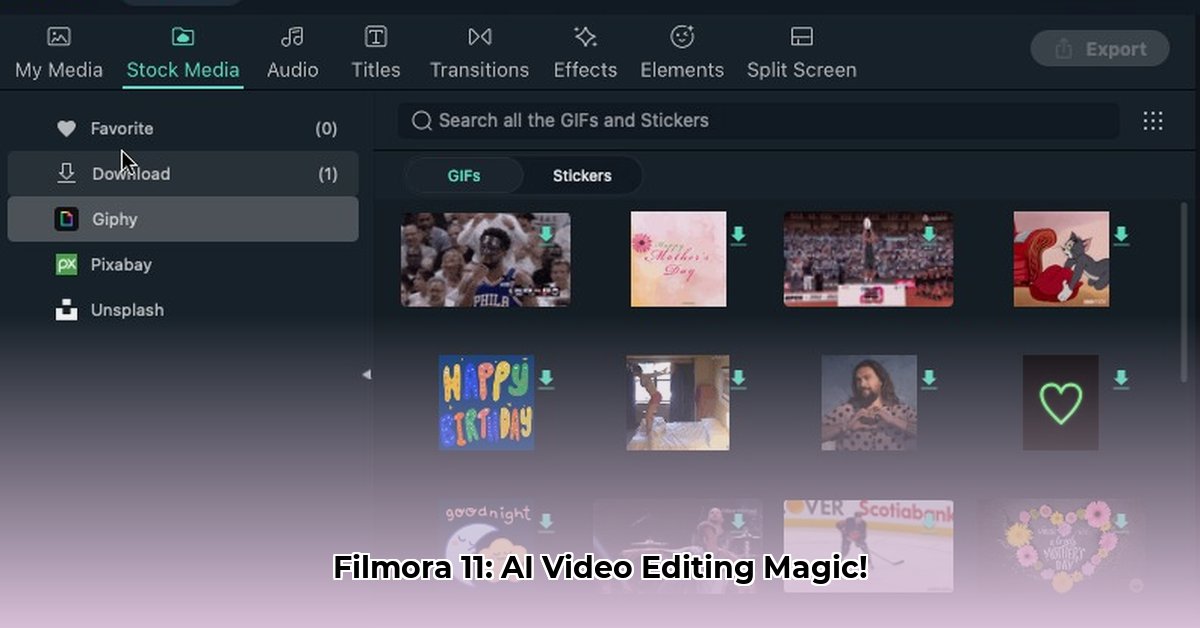
Filmora 11 is more than just AI; it's a full-featured video editing software. One of its strongest points is its massive asset library – boasting over 2.3 million royalty-free assets, including transitions, music, sound effects, and more. This rich library significantly enhances creative possibilities. Finding the right elements feels less like a search and more like browsing a vast, well-organized store.
The user interface is another highlight. Even complete beginners will find it intuitive and easy to navigate. This focus on usability is a significant advantage, allowing users to concentrate on their creative vision rather than wrestling with a complex software interface. Exporting finished videos is also straightforward, supporting a wide array of formats and resolutions. Cross-platform compatibility across Windows, macOS, Android, and iOS further enhances its appeal.
Areas for Improvement: Addressing the Limitations
While Filmora 11 excels in many areas, some improvements could enhance its functionality. The AI features, although impressive, aren't perfect. Complex tasks, such as the text-to-video function, sometimes yield suboptimal results. More granular control over AI parameters would be beneficial.
Compared to professional-grade software like Adobe Premiere Pro or Final Cut Pro, Filmora 11 prioritizes ease of use and streamlined workflows. This simplicity, while beneficial for beginners, means it lacks some advanced features found in its higher-end competitors. This is a trade-off worth considering – simplicity versus advanced capabilities. The choice ultimately depends on individual needs and skill level.
A Step-by-Step Guide: Mastering Filmora 11's AI Object Remover
Let's delve into a practical tutorial demonstrating Filmora 11's AI Object Remover:
- Import Your Video: Import your video file into the Filmora 11 interface.
- Select the Clip: Select the specific video clip containing the object you wish to remove.
- Locate the Tool: Navigate to the "AI Object Remover" tool typically found under the "Effects" tab.
- Apply and Refine: Apply the tool to the selected area. Adjust the intensity settings to fine-tune results. Experimentation is key to achieving optimal outcomes.
- Export Your Video: Once satisfied, export your edited video in your desired format.
Filmora 11: The Verdict
Filmora 11 offers a compelling blend of user-friendliness, AI-powered assistance, and a vast asset library. It's an excellent choice for social media content creation, quick projects, and users new to video editing. However, for extremely complex professional projects demanding the most advanced features, more powerful software might be a better fit. The free trial offers a risk-free way to determine if Filmora 11 meets your specific needs. Its powerful AI tools streamline editing, but understanding their limitations is critical for achieving professional results.
How to Overcome Filmora 11 AI Limitations for Professional Video Editing
While Filmora 11's AI features are undoubtedly useful, professionals often require more control and precision. Let's explore strategies for maximizing Filmora 11's potential while mitigating its limitations.
Filmora's AI Copilot: A Helpful Assistant, Not a Replacement
The AI Copilot simplifies basic tasks like adding transitions or music. It speeds up workflow for simpler projects. However, its creative capabilities are limited. Complex requests might require manual refinement or might not be fulfilled at all.
Strategies for overcoming limitations: Use the Copilot for routine tasks, focusing your creativity on more complex edits. Utilize precise and unambiguous commands to ensure accurate interpretation. Don't rely solely on the Copilot; always have a manual backup plan.
Filmora's AI Video Enhancer: Enhancing Footage Effectively
The AI Video Enhancer improves low-resolution footage. However, the three-minute video limit per enhancement can be restrictive for longer projects.
Strategies for overcoming limitations: Pre-plan your enhancements to efficiently manage the time limit. Consider splitting longer videos into manageable segments.
Professional Workflow: Combining AI with Manual Techniques
Filmora's AI is a valuable tool, but professional video editing requires a broader skillset. Effective strategies include:
- Leveraging External Tools: Complement Filmora with professional-grade software for color grading, advanced effects, and audio mastering.
- Mastering Manual Techniques: Develop strong fundamental editing skills for precise control over every aspect of your projects.
By understanding Filmora 11's strengths and limitations, and by employing these strategies, professionals can effectively use Filmora 11's AI features while maintaining the creative control necessary for high-quality video production.
⭐⭐⭐⭐☆ (4.8)
Download via Link 1
Download via Link 2
Last updated: Friday, May 09, 2025